Browser IDE · Shared coding
Pair program online with the codebase in view.
Crux is a collaborative code editor for developers working in the same project. Share a browser workspace, follow live edits, and arrange related files on a spatial canvas so both people can see the context of a change.
Start a shared coding session
For remote pair programming, pick one small task before inviting a teammate. A focused change makes it easier to decide which files belong on the canvas and when to trade the lead.
01 / OPEN
Open a workspace
Launch the browser IDE. Use Quick Boot Workspace to explore the sample project, or Import Project Folder to bring in files you want to work on together.
02 / INVITE
Share the right link
Select Share in the workspace header and copy the full-edit link for a collaborator who will change code. The dialog also offers a view-only link for someone following the session.
03 / ORIENT
Put the task in view
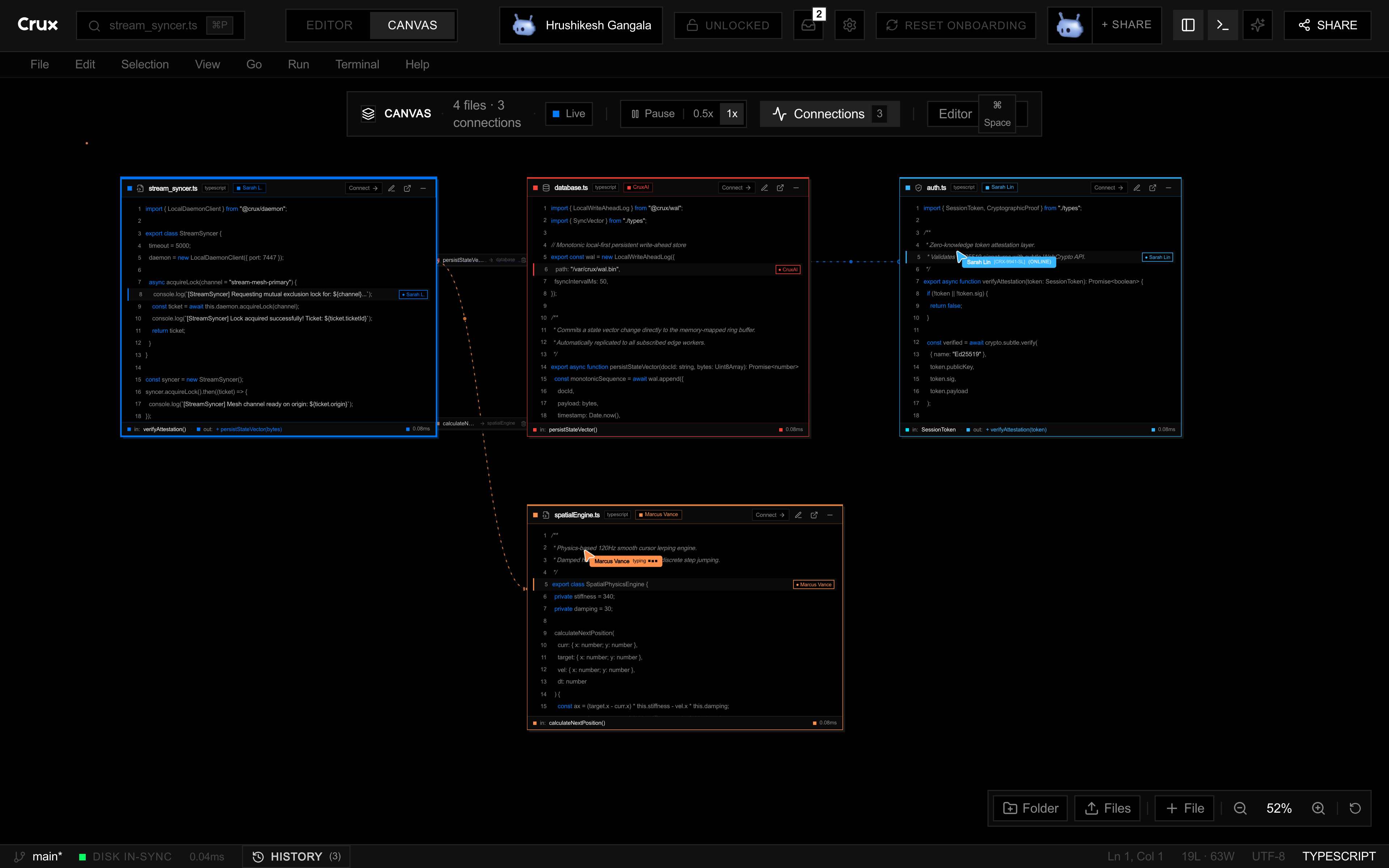
Open the files involved in one change. Switch to Canvas to see several related files at once, then return to Editor when you need a focused text view.
04 / WORK
Edit and discuss
Use shared text and teammate cursor presence to follow the work. Keep the Files and Terminal panels nearby, and switch who leads the change as the task moves forward.
Keep more than one file in the conversation
Pairing often means tracing a change from one file to another. On the canvas, open the relevant code together: for example, a request handler, the type it uses, and the test you are updating. Arrows can show the relationship you are discussing while the text stays available for editing.
The example above is a suggested workflow, not a built-in project. See the collaborative editor overview for the workspace itself.
Choose edit access deliberately
Full-edit link
Use this for a teammate who will edit files with you. The Share dialog labels it as a full-edit link; send it only to the people you intend to work with.
View-only link
Use this for a walkthrough or review when someone should follow the workspace without changing files. Copy it separately from the full-edit link.
The browser IDE is available to try now. Desktop access is offered through the Crux waitlist.