Browser IDE · Getting started
Crux IDE documentation
This guide covers the controls in the current Crux browser IDE: opening the workspace, switching between editor and canvas, bringing files into view, and sharing a session. The desktop experience is available through the waitlist.
Start in the browser
01 / OPEN
Launch the IDE
Visit codecrux.us/ide. The start screen offers Quick Boot Workspace for a sample project and Import Project Folder for your own files.
02 / NAVIGATE
Choose a view
Use the Editor and Canvas buttons at the top of the workspace. The file explorer lists project files, while Canvas lets you see several open files together.
03 / WORK
Keep tools nearby
Use the Files and Terminal buttons to show or hide those panels. The command palette also lets you search files and workspace actions.
Understand the spatial canvas
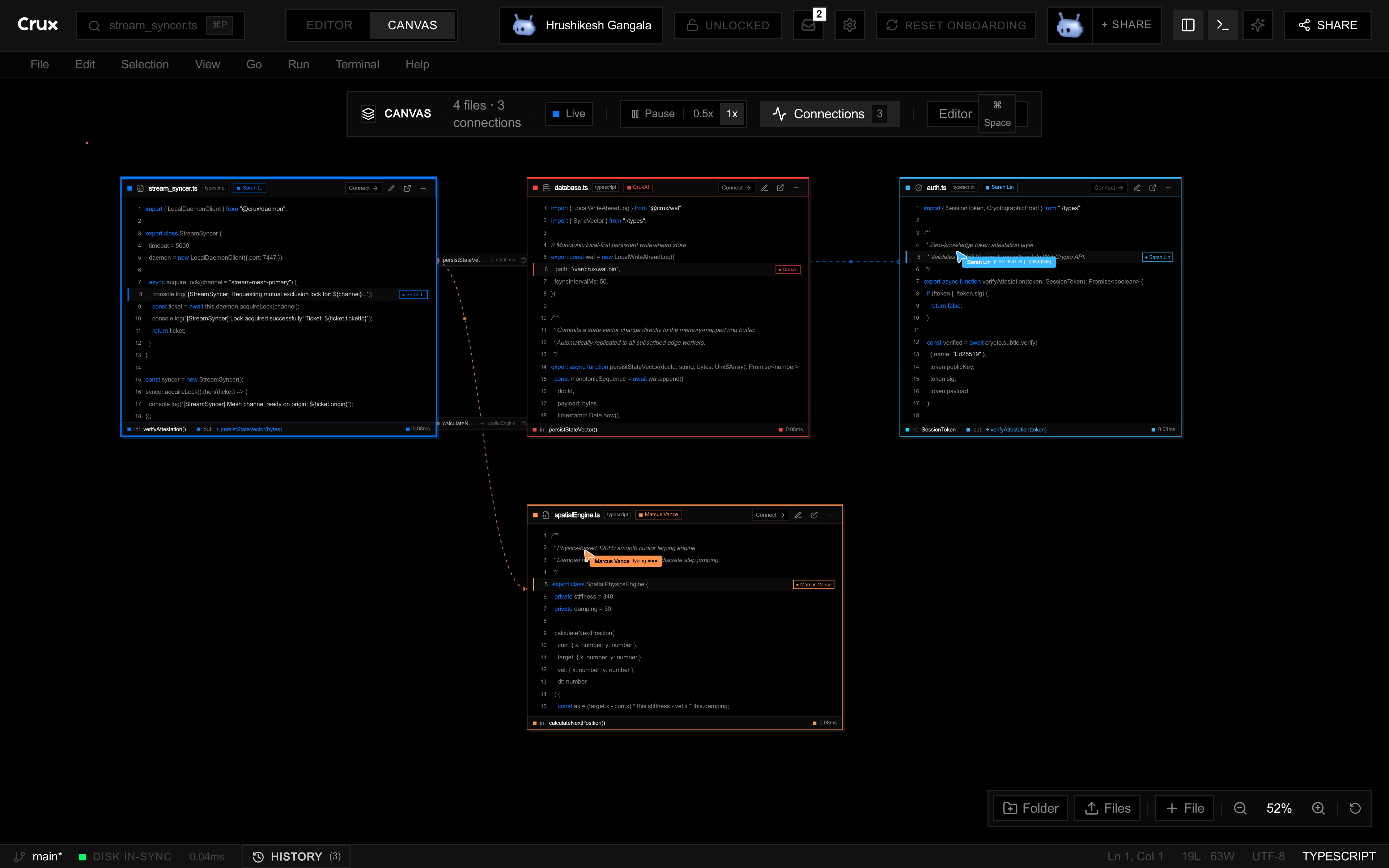
Canvas mode gives you a wider view of the files in a task. Zoom out to see multiple open files, and use the connection controls to draw arrows that explain relationships in the codebase. Return to Editor mode when you want to focus on text.
If you are comparing this approach with another editor, read the collaborative IDE comparison.
Share a workspace
Copy a collaboration link
Select Share in the workspace header. The dialog offers a full-edit link and a view-only link. Choose the access level you intend, copy the link, and send it to a collaborator you trust.
Follow live edits
Shared text and teammate cursor presence help participants see which part of the project is being edited. Keep the canvas visible when you need to discuss related files. For a full walkthrough of a session, read online pair programming in Crux.
Keyboard shortcuts
Use Command on macOS or Control where supported. Custom keybindings in settings can override the defaults.
More guides
Use Ollama in your code editor
Install Ollama, pull a local coding model, test the API and connect it to your editor.
VS Code Live Share alternative
How Crux compares with Live Share for pair programming and shared sessions.
Vibe coding with friends
Build in one live workspace where people and AI agents edit the same project.
Peer-to-peer collaboration with WebRTC
How teammates and agents connect peer to peer in a shared session.